Learn the tools

Go deep on every panel

One guide per panel — what it does, what to do with it, and the color science behind it. For readers who want to learn, not just click.

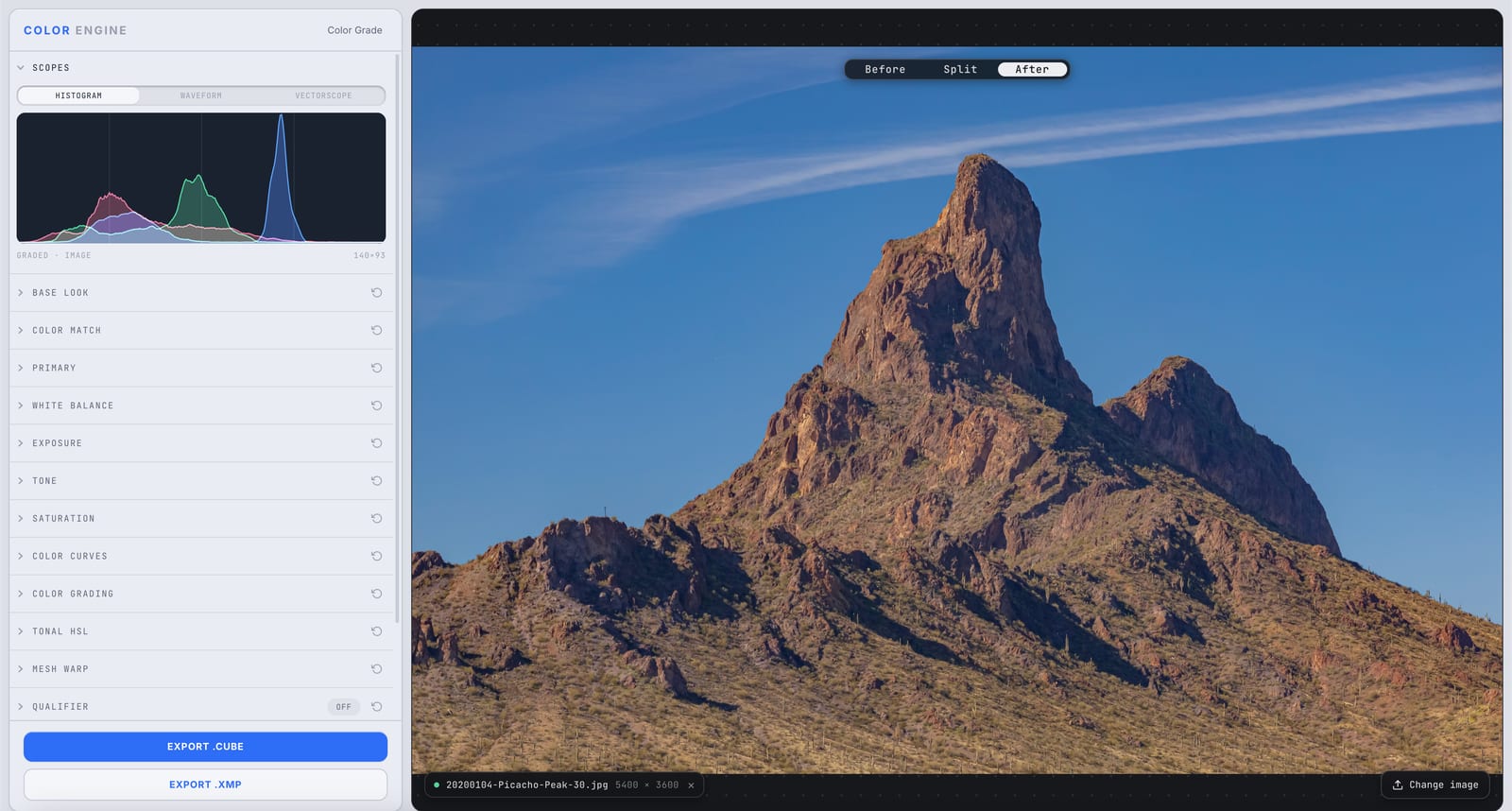
Color Engine's Scopes panel showing the RGB histogram of a graded desert mountain photo
Feature

Scopes

Your monitor lies — ambient light, eye fatigue, and a screen that drifted out of calibration all push you to grade by feel. Scopes show you the truth: an objective read of exposure, balance, and saturation, so your looks hold up on every screen but your own.

Read the deep-dive
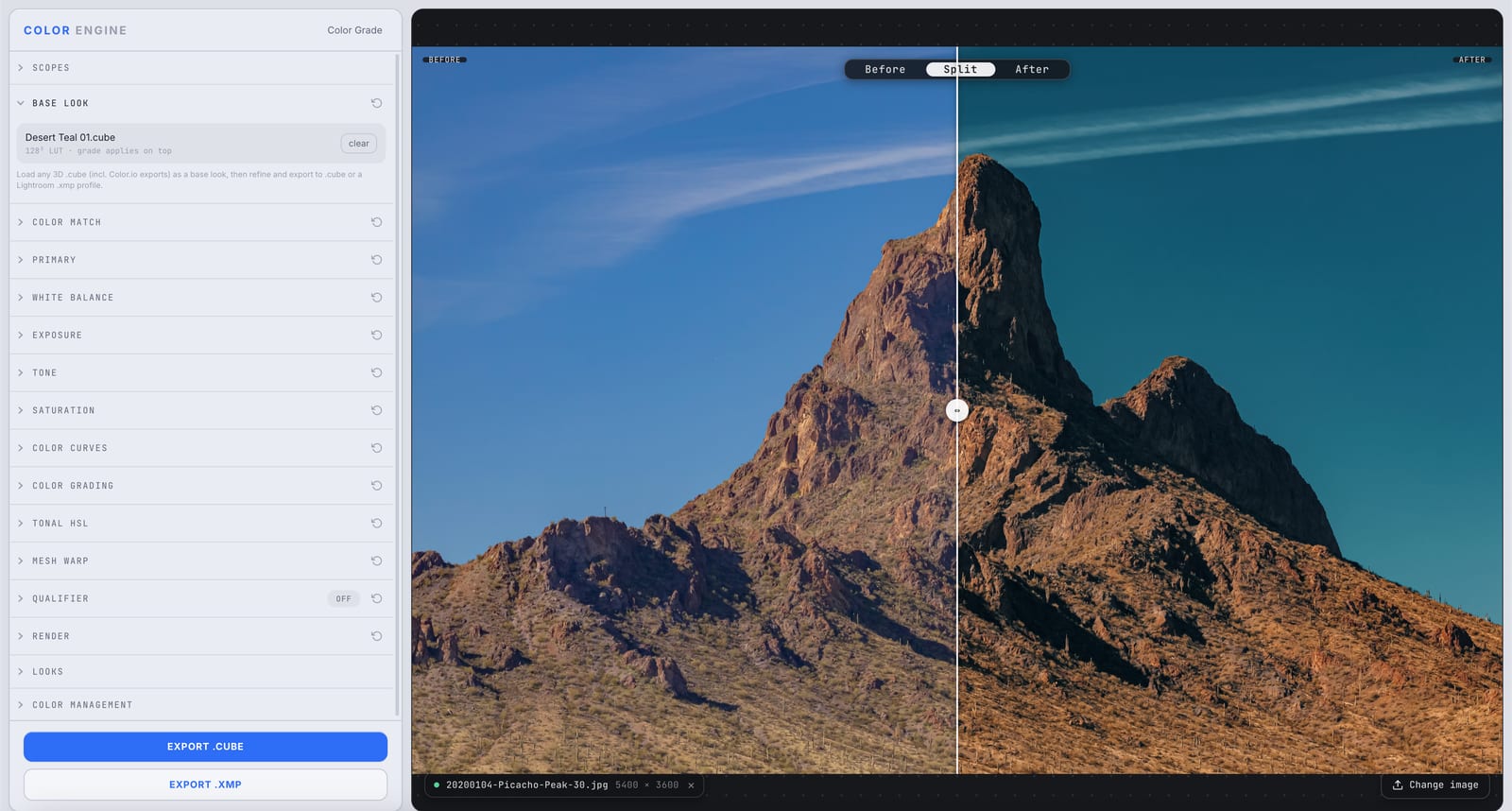
Color Engine's Base Look panel with a Desert Teal .cube LUT loaded as the foundation, shown as a before/after split on a desert mountain
Feature

Base Look

Drop in a 3D LUT as your foundation — a film emulation, a creative look, a Color.io export — and grade on top of it. Base Look is the starting point everything else builds on, baked through to your final .cube or .xmp.

Read the deep-dive
Color Match applying a warm Golden Haze grade to a photo of a vintage Canon AE-1 camera on a canyon overlook
Feature

Color Match

Point Color Match at a reference you love and it moves your image's whole palette to meet it — zone by zone, in the color space your eyes actually use. Not a filter sitting on top of your shot: a real transfer of the reference's color, baked into a LUT or preset you can take anywhere.

Read the deep-dive
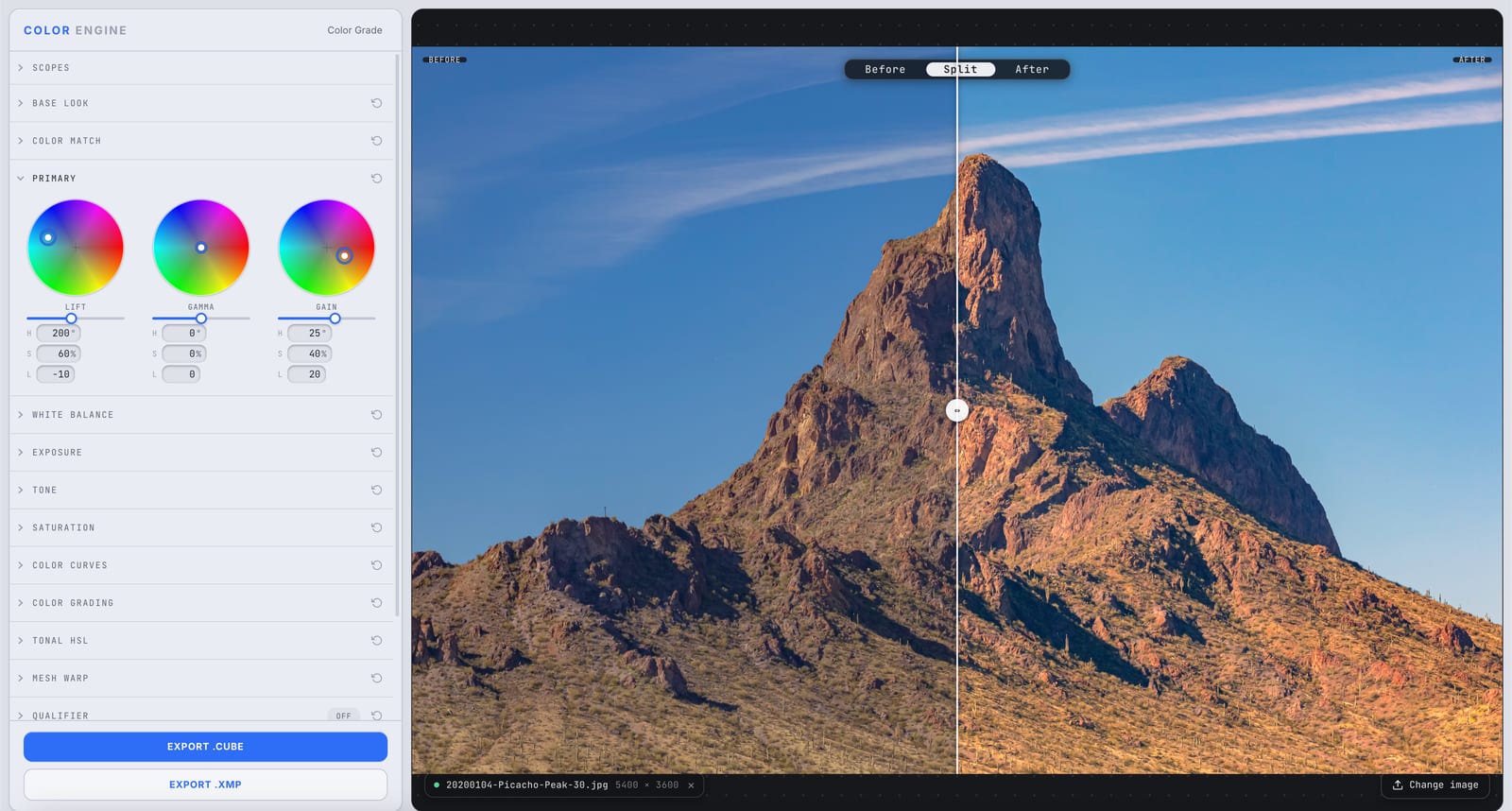
Color Engine's Primary panel with the Lift, Gamma, and Gain color wheels, shown as a before/after split on a desert mountain
Feature

Primary

The primary corrector — three wheels that push color and level into your shadows, mids, and highlights. Lift, Gamma, Gain: the foundational balance every creative move builds on.

Read the deep-dive
Feature

White Balance

Before any look, the foundation: make white read white. White Balance corrects the color of your light — the amber of tungsten, the blue of shade, the green of fluorescents — with two simple axes, so everything you grade on top sits on honest color.

Read the deep-dive
Feature

Exposure

Before color, brightness. Exposure sets where your image sits on the tonal scale — lifting a murky underexposure, pulling a blown sky back from the edge — so every grade after it has room to breathe.

Read the deep-dive
Feature

Tone

Exposure sets how bright; Tone sets the shape. Contrast, your black and white points, where the image pivots — Tone is where a flat capture gets its punch, or a harsh one gets tamed.

Read the deep-dive
Feature

Saturation

Color, dialed up or down — but smarter than a single slider. Saturation sets how vivid your image reads, with a vibrance-style option that protects skin and the already-saturated from tipping into neon.

Read the deep-dive
Feature

Color Curves

Curves are where contrast and color get surgical. Bend a line and you remap every tone exactly where you want it — lift the shadows, roll off the highlights, push warmth into the mids — on the master or one channel at a time.

Read the deep-dive
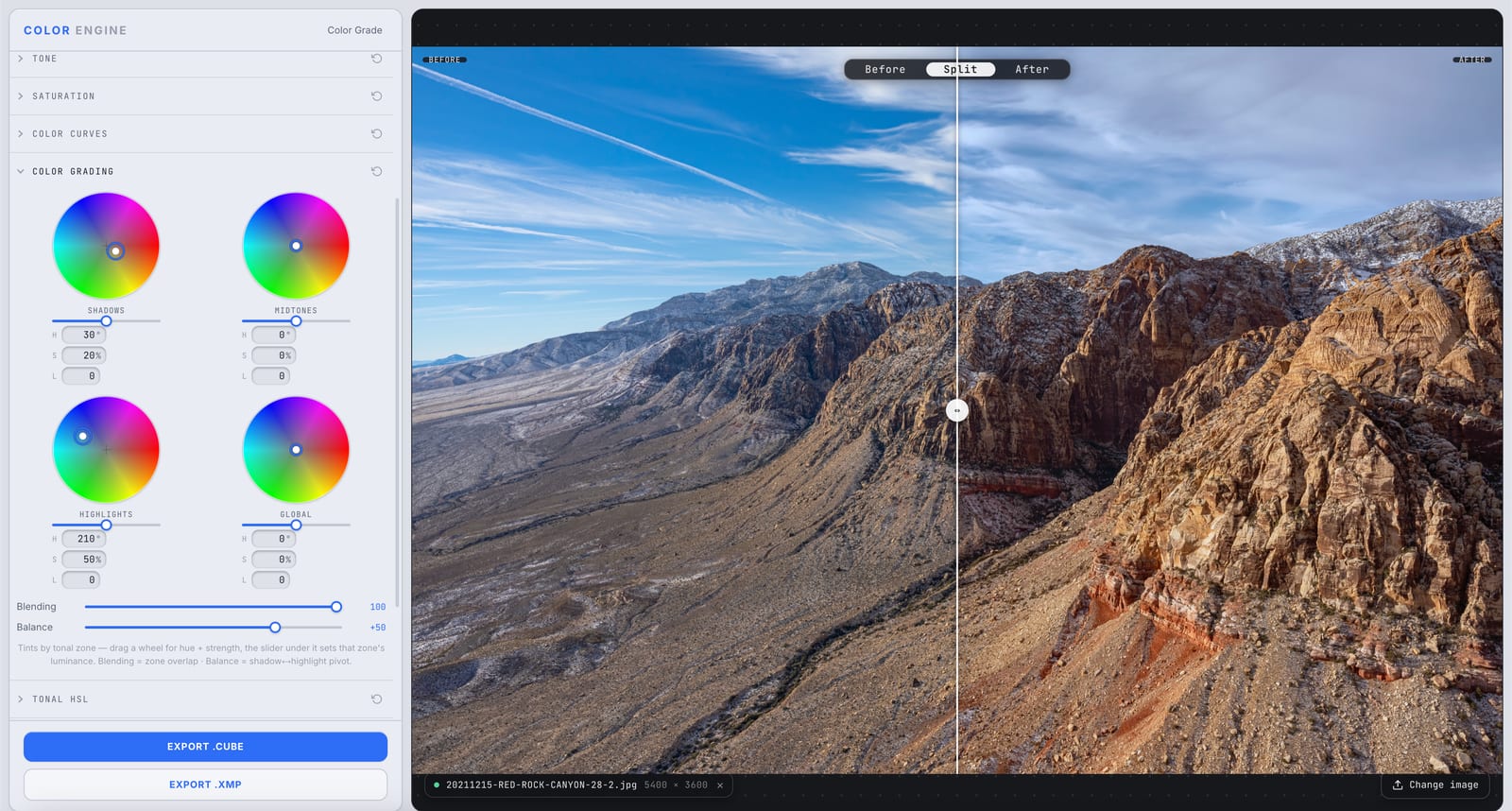
Color Engine's Color Grading panel with the shadows, midtones, highlights, and global wheels, shown as a before/after split on a desert canyon
Feature

Color Grading

The creative color layer: tint your shadows, midtones, highlights, and the whole frame independently. Drag a wheel for hue and strength, set each zone's luminance, then blend them into a signature look — teal shadows, warm highlights, the works.

Read the deep-dive
Feature

Tonal HSL

Sometimes you don't want to move the whole image — just the skies, or the skin, or the foliage. Tonal HSL splits color into bands and lets you bend the Hue, Saturation, and Luminance of each one independently, no masks required.

Read the deep-dive
Feature

Qualifier

Point at a color and pull it out of the image — a precise key by hue, saturation, and luminance — so your next move touches only the sky, the shirt, the skin, and nothing else. The qualifier is how a grade gets surgical.

Read the deep-dive

More deep-dives on the way

Every panel in the studio gets the same treatment.

Mesh WarpRenderLooksColor Management