Tint by tonal zone — build the look
Color Grading
The creative color layer: tint your shadows, midtones, highlights, and the whole frame independently. Drag a wheel for hue and strength, set each zone's luminance, then blend them into a signature look — teal shadows, warm highlights, the works.
Tint by tonal zone
Shadows, midtones, highlights, and a global wheel — blended into a look.
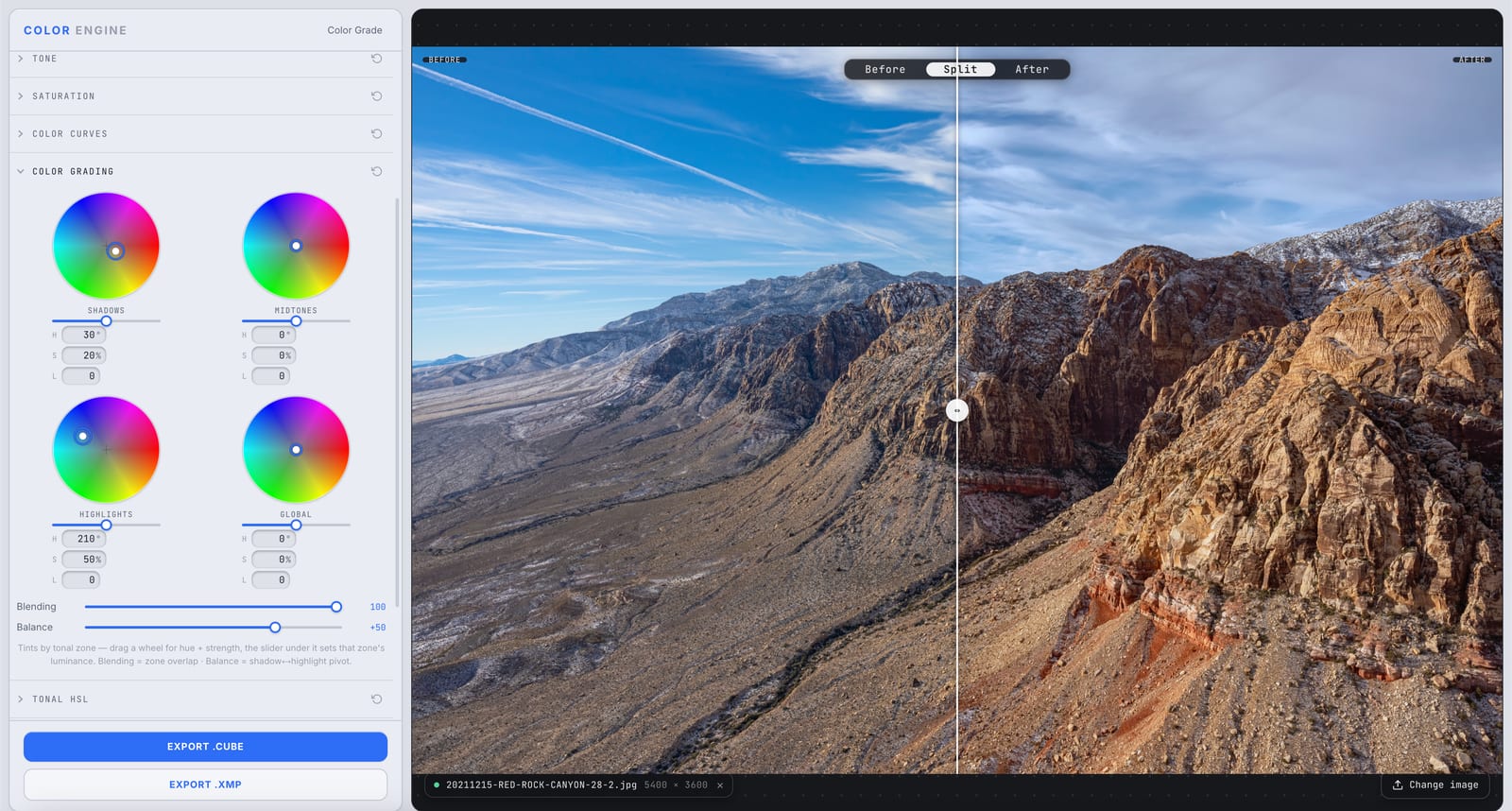
What it is
Color Grading gives you four wheels — Shadows, Midtones, Highlights, and Global — to tint each tonal zone independently. Drag a wheel for hue and strength; the slider under it sets that zone's luminance. The Global wheel washes a tint over the whole frame on top.
Two controls shape how the zones interact: Blending sets how much they overlap, and Balance shifts the pivot between shadows and highlights. This is where a corrected image becomes a look — the creative layer that builds on Primary's correction.
The controls
Shadows / Midtones / Highlights
A wheel per tonal zone. Drag for hue + strength to tint it; the slider beneath each wheel sets that zone's luminance.
Global
Tints the entire image at once — a wash over everything, layered on top of the per-zone tints.
Blending
How much the tonal zones overlap. Lower for crisp, separated zones; higher for smooth, gradual transitions.
Balance
Shifts the pivot between shadows and highlights — decide where 'mid' sits, so your tint leans darker or brighter.
What to do with it
Where Color Match earns its place in a real grade.
Build teal-and-orange
Tint the shadows toward teal and the highlights toward orange — the most recognizable look in modern film.
Wash the whole frame
Use the Global wheel for an overall warm or cool cast on top of your per-zone tints.
Cool a night scene
Push shadows and mids blue while keeping the highlights warm for believable moonlight.
Subtle film tint in the mids
Add a whisper of color to the midtones for mood without touching your blacks or speculars.
Field tips
- Complementary tints in shadows and highlights (teal/orange, blue/amber) read most cinematic — they maximize separation.
- Correct with Primary first, then style here. Tinting on top of a cast just fights you.
The science
The part nobody else explains
Split-toning, by tonal zone
Tinting shadows one way and highlights another is split-toning — the backbone of a cinematic look. Different color in different tones is what the eye reads as 'graded,' because it mirrors how light behaves: cool shade, warm sun.
Blending controls the seams
Real tonal zones don't have hard edges. Blending sets how far the shadow, mid, and highlight tints feather into each other — low for graphic separation, high for a seamless wash.
Balance moves the fulcrum
Balance decides which tones count as 'shadow' versus 'highlight.' Shift it and the same wheels paint a different slice of the image — fine control over where your tint bites.
Color Grading vs Primary
Primary (Lift/Gamma/Gain) corrects and balances; Color Grading (Shadows/Mids/Highlights/Global) tints and styles. Same idea — color by tonal zone — but different jobs. Correct first, then build the look here.
Frequently asked
Color Grading vs Primary — which do I use?
Primary (lift/gamma/gain) corrects and balances the image; Color Grading (shadows/mids/highlights/global) tints and styles it. Correct with Primary first, then build the look here.
What do Blending and Balance do?
Blending sets how much the tonal zones overlap (crisp vs. smooth); Balance shifts the pivot between shadows and highlights, deciding where 'mid' sits.
How do I get teal and orange?
Tint the shadows wheel toward teal and the highlights wheel toward orange. Mind your skin tones so faces don't go neon.
Related features
Try Color Grading on your own shot
Build a look, match it across a set, and export a LUT or preset in minutes — free for 14 days, no installs.